| Basic purpose | A document camera captures a live image of a document, book, object, or demonstration and sends it to a display or computer. | It lets a group view physical materials without passing them around or making a separate scan first. | Choose a setup that works with the display, computer, or video-conferencing system used in your space. |
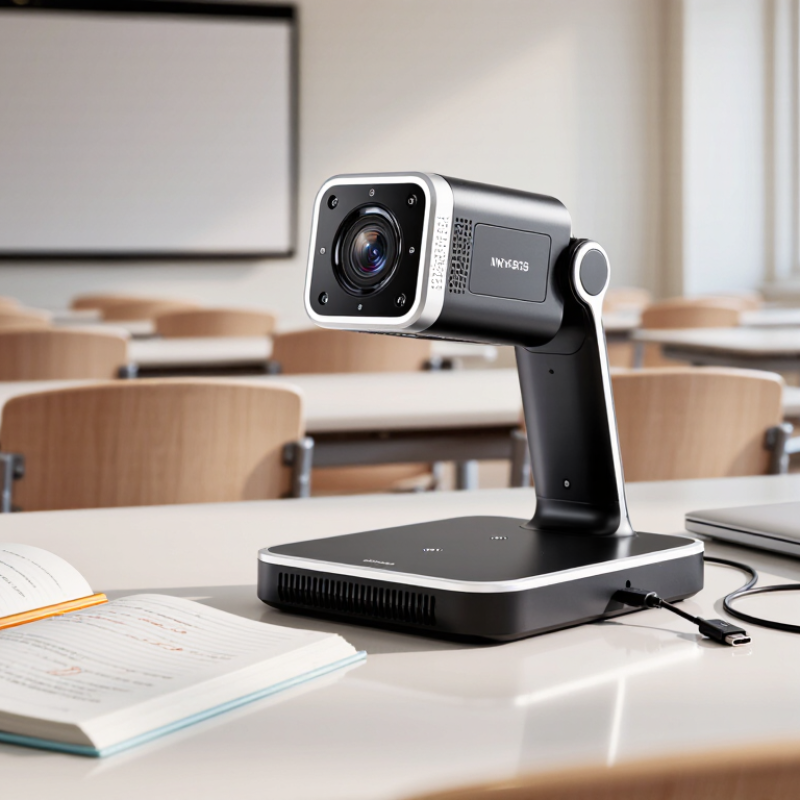
| Camera head and arm | A camera positioned above a work surface points downward. Many models use a flexible or folding arm to adjust the camera’s position. | Working distance and arm movement affect how much of the page or object fits in the frame. | Check that the camera can cover the largest materials you expect to show and can be positioned steadily. |
| Image sensor and resolution | The sensor converts incoming light into a digital image. Resolution describes the image dimensions; for example, 1920 × 1080 is Full HD, while 3840 × 2160 is 4K UHD. | More pixels can reveal finer detail, but the display, connection, and software must also support the chosen resolution. | Match resolution to your use: readable text and fine diagrams may benefit from higher resolution, while everyday page display may not require it. |
| Focus | Autofocus adjusts the lens to bring the subject into focus; manual focus lets the user adjust it directly. | Focus can change when switching between a flat page and a three-dimensional object. | Look for reliable focus behavior at the distances and with the materials you plan to demonstrate. |
| Lighting | A built-in light illuminates the subject, while the camera sensor records the reflected light. Ambient room lighting also affects the image. | Even lighting can improve visibility and reduce shadows on pages or objects. | Check whether the light can be adjusted or switched off, especially when reflective materials are used. |
| Frame rate and motion | Frame rate is the number of video frames captured per second. Higher frame rates can make moving demonstrations appear smoother. | It matters more when showing hand movements, experiments, or live manipulation than when displaying a still page. | Confirm the supported frame rate at the resolution you intend to use; specifications can differ by setting. |
| Connection and software | A camera may send video through a computer connection or directly to a compatible display. Software can provide controls such as image rotation, capture, or annotation. | Connections and software determine how easily the camera fits into lessons, meetings, or recording workflows. | Verify compatibility with your operating system, display inputs, conferencing tools, and any required capture software. |
| Portability and setup | Some designs fold or use a compact base; others are intended to remain installed at a desk or teaching station. | Size, stability, and setup time influence how convenient the camera is for shared rooms or frequent travel. | Consider workspace size, storage, cable routing, and whether the camera needs to be moved regularly. |
| How it works: capture to display | Light from the subject passes through the lens, the sensor turns it into image data, and the camera sends that data to a connected computer or display. | This live image can be shown to an audience, included in a video call, or recorded when the software and connection support it. | Test the full path—from camera and cable to software and screen—before relying on it for a presentation. |
| Choosing the best fit in 2026 | There is no single best document camera for every use; the right choice depends on materials, room setup, image needs, and workflow. | A feature is useful only when it solves a real need in your setting. | Prioritize compatibility, clear focus, suitable coverage, dependable lighting, and the resolution and motion quality your tasks require. |



 08045479132
 Send Inquiry


 Send Inquiry
 Send SMS